
Create a Custom Block
What You’ll Build
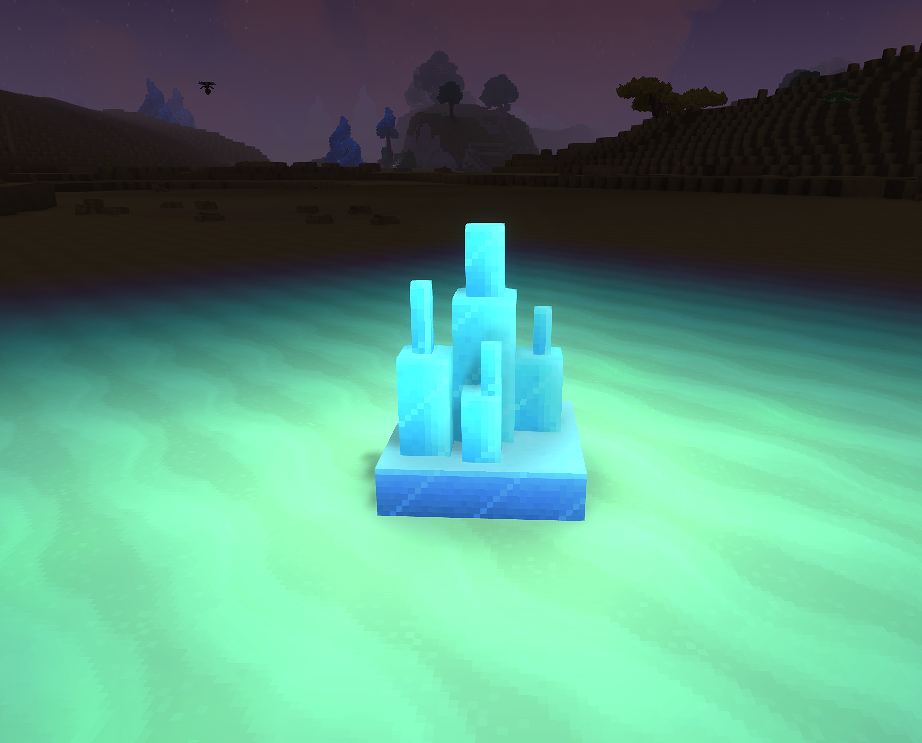
A glowing crystal block called Ore_Crystal_Glow — a custom-model block with its own texture, light emission, sound set, and inventory icon.
Prerequisites
- A mod folder with a valid
manifest.json(see Installation & Setup) - Blockbench for authoring the 3D model
- A Hytale build compatible with your
TargetServerVersion - Basic familiarity with JSON (see JSON Basics)
Git Repository
The complete working mod is available as a GitHub repository you can clone and use directly:
https://github.com/nevesb/hytale-mods-custom-blockClone it and copy the contents into your Hytale mods directory to test immediately. The repository contains every file described in this tutorial in the correct folder structure:
hytale-mods-custom-block/├── manifest.json├── Common/│ ├── Blocks/HytaleModdingManual/│ │ └── Crystal_Glow.blockymodel│ ├── BlockTextures/HytaleModdingManual/│ │ └── Crystal_Glow.png│ └── Icons/ItemsGenerated/│ └── Ore_Crystal_Glow.png├── Server/│ ├── BlockTypeList/│ │ └── HytaleModdingManual_Blocks.json│ ├── Item/│ │ ├── Block/Blocks/HytaleModdingManual/│ │ │ └── Ore_Crystal_Glow.json│ │ └── Items/HytaleModdingManual/│ │ └── Ore_Crystal_Glow.json│ └── Languages/│ └── en-US/server.lang└── ...For an asset-only tutorial mod, your manifest should look like this:
{ "Group": "HytaleModdingManual", "Name": "CreateACustomBlock", "Version": "1.0.0", "Description": "Implements the Create A Block tutorial with a custom crystal block", "Authors": [ { "Name": "HytaleModdingManual" } ], "Dependencies": {}, "OptionalDependencies": {}, "IncludesAssetPack": true, "TargetServerVersion": "2026.02.19-1a311a592"}Step 1: Build the Block in Blockbench
Open Blockbench and create your block model. For the crystal example, the model is a cluster of rectangular prisms arranged to look like natural crystal formations on a flat base.
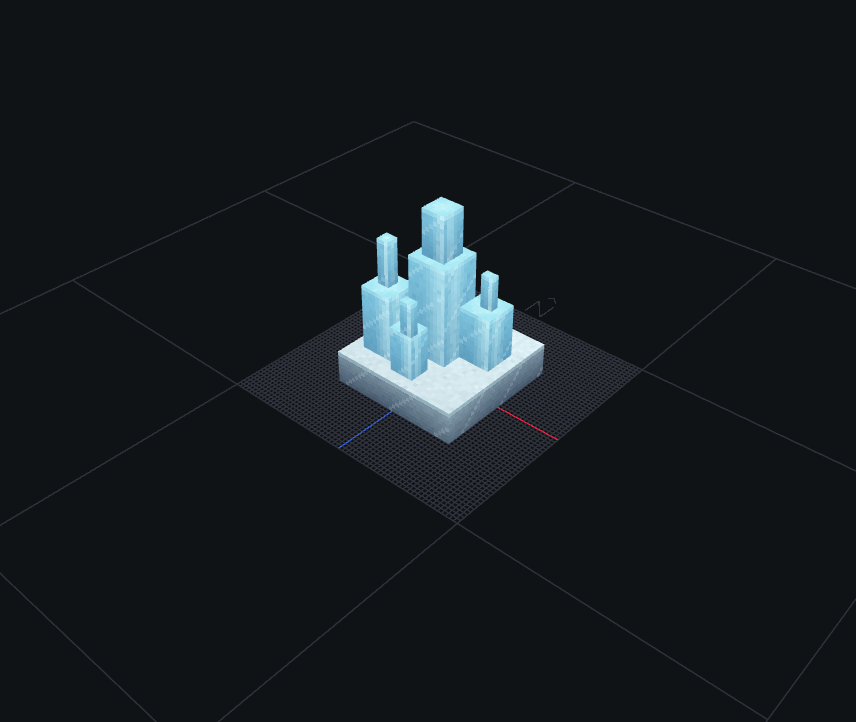
Export the model as a .blockymodel file and save it to:
Common/Blocks/HytaleModdingManual/Crystal_Glow.blockymodelThe .blockymodel format is Hytale’s runtime model format. Blockbench can export directly to this format using the Hytale plugin.
Step 2: Create the Texture
Paint or export your texture in Blockbench and save the PNG file to:
Common/BlockTextures/HytaleModdingManual/Crystal_Glow.pngThis is the texture atlas referenced by the .blockymodel. The UV mapping in Blockbench determines how this texture wraps around the model faces.
Step 3: Create the Block Definition
The block definition controls how the block behaves in the world — its physics, rendering, light, sound, and gathering behavior.
Create the file at:
Server/Item/Block/Blocks/HytaleModdingManual/Ore_Crystal_Glow.json{ "Material": "Solid", "DrawType": "Model", "Opacity": "Transparent", "VariantRotation": "NESW", "CustomModel": "Blocks/HytaleModdingManual/Crystal_Glow.blockymodel", "CustomModelTexture": [ { "Texture": "BlockTextures/HytaleModdingManual/Crystal_Glow.png", "Weight": 1 } ], "HitboxType": "Full", "Gathering": { "Breaking": { "GatherType": "Rocks", "ItemId": "Ore_Crystal_Glow" } }, "Light": { "Color": "#88ccff", "Level": 14 }, "BlockSoundSetId": "Crystal", "ParticleColor": "#88ccff", "Support": { "Down": [ { "FaceType": "Full" } ] }}Block Definition Fields
| Field | Type | Required | Default | Description |
|---|---|---|---|---|
Material | string | Yes | — | Physics material for the block. Controls collision and tool interaction. Values: Solid, Liquid, Gas, NonSolid. |
DrawType | string | Yes | Block | How the block is rendered. Block = standard cube, Model = custom .blockymodel mesh, Cross = X-shaped plant sprite. |
Opacity | string | No | Opaque | Light behavior. Opaque blocks light fully, Transparent lets light pass through, SemiTransparent for partial opacity. |
VariantRotation | string | No | — | Rotation variants when placing. NESW = 4 cardinal directions, None = fixed orientation. |
CustomModel | string | No | — | Path to the .blockymodel file (relative to Common/). Required when DrawType is Model. |
CustomModelTexture | array | No | — | List of texture objects for the custom model. Each entry has Texture (path) and Weight (for random selection). |
CustomModelTexture[].Texture | string | Yes | — | Path to the PNG texture file (relative to Common/). |
CustomModelTexture[].Weight | number | No | 1 | Weight for random texture selection. If multiple textures are listed, Hytale picks one based on weight. |
HitboxType | string | No | Full | Collision hitbox shape. Full = entire block space, None = no collision (walkthrough), Custom = defined per-model. |
Gathering | object | No | — | Defines what happens when the block is broken. Contains a Breaking sub-object. |
Gathering.Breaking.GatherType | string | No | — | Tool category needed to break efficiently. Values: Rocks, Wood, Dirt, Plant, etc. |
Gathering.Breaking.ItemId | string | No | — | Item ID dropped when the block is broken. Use the block’s own ID to make it drop itself. |
Light | object | No | — | Light emission configuration. |
Light.Color | string | No | #ffffff | Hex color of the emitted light. |
Light.Level | number | No | 0 | Light intensity from 0 (no light) to 15 (maximum, like sunlight). |
BlockSoundSetId | string | No | — | Sound set used for placing, breaking, and walking on the block. Values: Stone, Wood, Crystal, Metal, Dirt, etc. |
ParticleColor | string | No | — | Hex color of particles emitted when the block is broken. |
BlockParticleSetId | string | No | — | Particle set used when the block is broken or interacted with. Values: Stone, Wood, Dirt, etc. |
Support | object | No | — | Defines which adjacent blocks must exist for this block to remain placed. If support is removed, the block breaks and drops as an item. Down requires a block below with FaceType: "Full". |
Flags | object | No | {} | Bitfield flags for special block behaviors (e.g., Flammable, Replaceable). |
Step 4: Register the Block in a BlockTypeList
Create the list file at:
Server/BlockTypeList/HytaleModdingManual_Blocks.json{ "Blocks": [ "Ore_Crystal_Glow" ]}Hytale merges block lists from all loaded mods automatically. You do not need to modify any vanilla file — just create your own list and the game discovers it.
Step 5: Create the Item Definition
The item definition makes the block appear in inventory and controls how the player interacts with it. This is separate from the block definition — the item is what the player holds, and the block is what exists in the world.
Create the file at:
Server/Item/Items/HytaleModdingManual/Ore_Crystal_Glow.json{ "TranslationProperties": { "Name": "server.items.Ore_Crystal_Glow.name", "Description": "server.items.Ore_Crystal_Glow.description" }, "Interactions": { "Primary": "Block_Primary", "Secondary": "Block_Secondary" }, "Quality": "Uncommon", "Icon": "Icons/ItemsGenerated/Ore_Crystal_Glow.png", "PlayerAnimationsId": "Block", "BlockType": { "Material": "Solid", "DrawType": "Model", "Opacity": "Transparent", "VariantRotation": "NESW", "CustomModel": "Blocks/HytaleModdingManual/Crystal_Glow.blockymodel", "CustomModelTexture": [ { "Texture": "BlockTextures/HytaleModdingManual/Crystal_Glow.png", "Weight": 1 } ], "HitboxType": "Full", "Flags": {}, "Gathering": { "Breaking": { "GatherType": "Rocks", "ItemId": "Ore_Crystal_Glow" } }, "Light": { "Color": "#88ccff", "Level": 14 }, "BlockParticleSetId": "Stone", "BlockSoundSetId": "Crystal", "ParticleColor": "#88ccff", "Support": { "Down": [ { "FaceType": "Full" } ] } }, "MaxStack": 64, "IconProperties": { "Scale": 0.58823, "Rotation": [22.5, 45, 22.5], "Translation": [0, -13.5] }}Item Definition Fields
| Field | Type | Required | Default | Description |
|---|---|---|---|---|
TranslationProperties | object | No | — | Contains translation keys for the item name and description. |
TranslationProperties.Name | string | No | — | Translation key for the item’s display name (e.g., server.items.Ore_Crystal_Glow.name). |
TranslationProperties.Description | string | No | — | Translation key for the item’s tooltip description. |
Interactions | object | No | — | Defines what happens on left-click (Primary) and right-click (Secondary). |
Interactions.Primary | string | No | — | Primary interaction when the player left-clicks. Block_Primary = break block behavior. |
Interactions.Secondary | string | No | — | Secondary interaction when the player right-clicks. Block_Secondary = place block behavior. |
Quality | string | No | Common | Item rarity tier. Affects the color of the item name in the UI. Values: Common, Uncommon, Rare, Epic, Legendary. |
Icon | string | No | — | Path to the inventory icon PNG (relative to Common/). |
PlayerAnimationsId | string | No | — | Animation set used when the player holds this item. Block = block placement animations, Sword = melee swing, etc. |
BlockType | object | No | — | Embedded block definition. When the player places the item, this block is created in the world. Contains the same fields as the standalone Block Definition. |
MaxStack | number | No | 1 | Maximum stack size in inventory (1–64). |
IconProperties | object | No | — | Controls how the 3D model is rendered as an inventory icon. |
IconProperties.Scale | number | No | 1.0 | Scale factor for the icon render. Adjust to fit the model within the icon frame. |
IconProperties.Rotation | array | No | [0,0,0] | Euler rotation [X, Y, Z] in degrees for the icon render. [22.5, 45, 22.5] gives a standard isometric view. |
IconProperties.Translation | array | No | [0,0] | Pixel offset [X, Y] to center the model in the icon frame. |
Parent | string | No | — | Inherit fields from another item definition. Useful for creating variants without duplicating the entire JSON. |
Tags | array | No | [] | List of tag strings for categorization and filtering (e.g., ["Decorative", "Light_Source"]). |
Categories | array | No | [] | Item categories for crafting menu grouping. |
ItemLevel | number | No | 0 | Numeric tier level used for progression gating. |
MaxStack | number | No | 1 | Maximum number of items per inventory slot. |
SoundEventId | string | No | — | Sound played on specific item events (equip, use). |
ItemSoundSetId | string | No | — | Sound set for general item interactions. |
Step 6: Generate the Icon with the Resource Editor
Hytale includes a built-in Resource Editor accessible from Creative Mode. You can use it to automatically generate the inventory icon for your block instead of creating one manually.
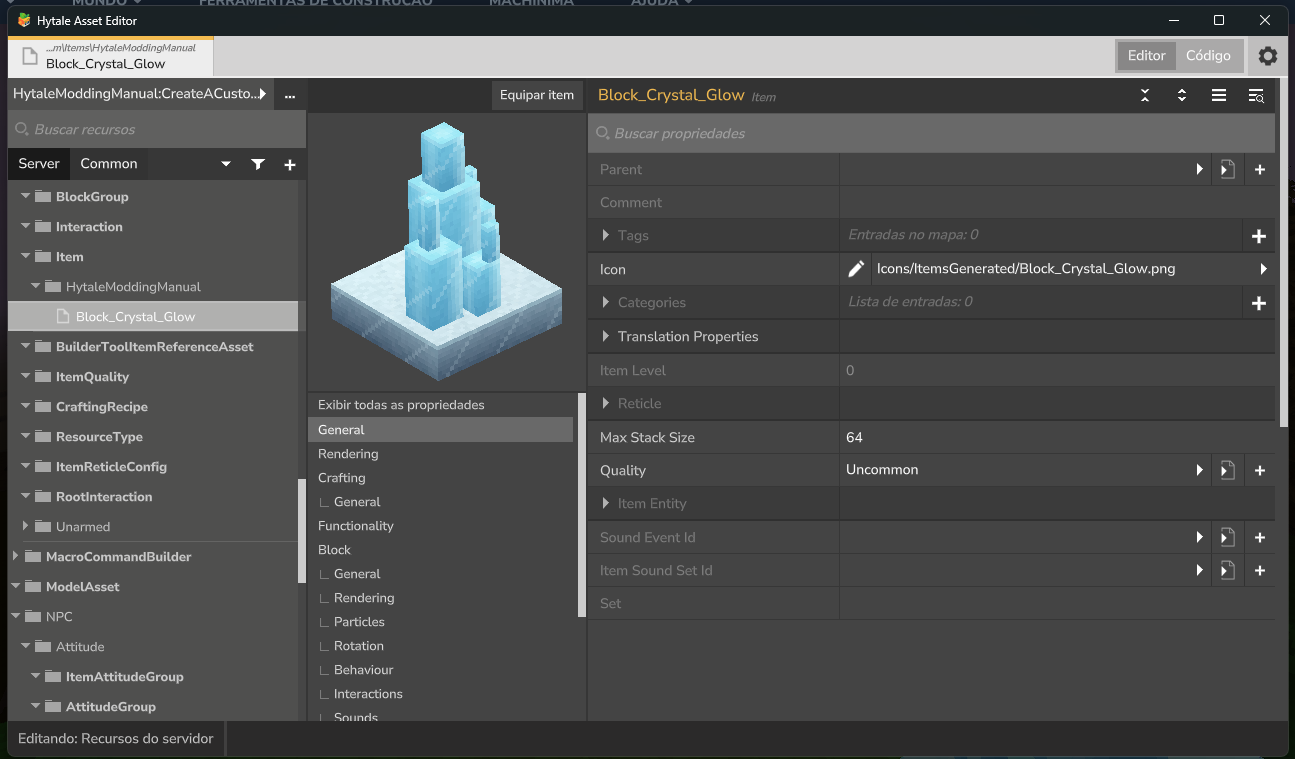
To generate the icon:
- Open Hytale in Creative Mode
- Open the Resource Editor (top-right corner: “Editor” button)
- Navigate to Item in the left panel and find your mod group (e.g.,
HytaleModdingManual) - Select your block item (
Ore_Crystal_Glow) - In the properties panel on the right, find the Icon field
- Click the pencil icon next to the Icon field — the editor will render the 3D model and save a PNG icon automatically
- The generated icon is saved to
Icons/ItemsGenerated/Ore_Crystal_Glow.png
The Resource Editor also lets you adjust IconProperties (Scale, Rotation, Translation) visually to get the perfect isometric view for your icon.
The IconProperties in the item JSON control how the 3D model is positioned for the icon render:
- Scale:
0.58823shrinks the crystal to fit within the icon frame - Rotation:
[22.5, 45, 22.5]gives the standard isometric angle - Translation:
[0, -13.5]shifts the model down to center it
Step 7: Add Translations
Hytale uses .lang files for translating item names and descriptions. Create a language file for each locale you want to support:
Server/Languages/en-US/server.langServer/Languages/pt-BR/server.langServer/Languages/es/server.langHow Translation Works
The item JSON references translation keys through TranslationProperties:
{ "TranslationProperties": { "Name": "server.items.Ore_Crystal_Glow.name", "Description": "server.items.Ore_Crystal_Glow.description" }}The game looks up these keys in the .lang file matching the player’s language. The key format is:
items.<ItemId>.<property> = <translated text>English (Server/Languages/en-US/server.lang)
items.Ore_Crystal_Glow.name = Glowing Crystal Blockitems.Ore_Crystal_Glow.description = A crystal block that radiates soft blue light.Portuguese (Server/Languages/pt-BR/server.lang)
items.Ore_Crystal_Glow.name = Bloco de Cristal Brilhanteitems.Ore_Crystal_Glow.description = Um bloco de cristal que irradia uma suave luz azul.Spanish (Server/Languages/es/server.lang)
items.Ore_Crystal_Glow.name = Bloque de Cristal Brillanteitems.Ore_Crystal_Glow.description = Un bloque de cristal que irradia una suave luz azul.If a translation key is missing for a locale, Hytale falls back to en-US. If the key is missing entirely, the raw key string (e.g., server.items.Ore_Crystal_Glow.name) is displayed instead of the translated name.
For more details on the localization system, see Localization Keys.
Step 8: Package and Test
Your final mod folder should look like this:
CreateACustomBlock/├── manifest.json├── Common/│ ├── Blocks/HytaleModdingManual/│ │ └── Crystal_Glow.blockymodel│ ├── BlockTextures/HytaleModdingManual/│ │ └── Crystal_Glow.png│ └── Icons/ItemsGenerated/│ └── Ore_Crystal_Glow.png├── Server/│ ├── BlockTypeList/│ │ └── HytaleModdingManual_Blocks.json│ ├── Item/│ │ ├── Block/Blocks/HytaleModdingManual/│ │ │ └── Ore_Crystal_Glow.json│ │ └── Items/HytaleModdingManual/│ │ └── Ore_Crystal_Glow.json│ └── Languages/│ ├── en-US/server.lang│ ├── pt-BR/server.lang│ └── es/server.langTo test:
- Copy the mod folder into your Hytale mods directory
- Start the game or reload the mod environment
- Grant yourself operator permissions and spawn the block using chat commands:
/op self/spawnitem Ore_Crystal_Glow
- Place the block in the world
- Confirm:
- The custom crystal model appears (not a default cube)
- The block emits blue light (
Level: 14) - Crystal sounds play when placing and breaking
- The block drops itself when broken
- The translated name appears in the inventory tooltip
Block Creation Flow
flowchart TD;    A[Create 3D Model<br>in Blockbench] --> B[Export .blockymodel];    B --> C[Save Texture PNG];    C --> D[Create Block Definition<br>Server/Item/Block/Blocks/];    D --> E[Register in BlockTypeList];    E --> F[Create Item Definition<br>Server/Item/Items/];    F --> G[Generate Icon<br>via Resource Editor];    G --> H[Add Translation<br>.lang files];    H --> I[Test In Game];
    style A fill:#2d5a27,color:#fff;    style G fill:#4a3d8f,color:#fff;    style I fill:#2d6a8f,color:#fff;
Related Pages
- Create a Custom Item — Items without block placement
- Create a Custom NPC — Spawn creatures in the world
- Block Definitions Reference — Full block schema
- Item Definitions Reference — Full item schema
- Block Textures — Texture conventions
- Localization Keys — Translation system
- Mod Packaging — Distribution guide